

Reader summary:
- Copilot is integrated across Microsoft 365, Windows 11, Microsoft Edge, mobile apps and the web, so that many users can already start today with existing licences or the free version.
- For the best value inside Word, Excel, PowerPoint, Outlook, and Microsoft Teams, businesses need the right Microsoft 365 Copilot licences assigned by admins.
- Copilot can draft emails, summarise email threads, generate content, create visualisations, answer questions and organise information using natural language.
- PM&A can help plan, deploy and govern Copilot with a strong focus on security, data privacy, POPIA awareness and practical staff training.
What is Microsoft Copilot and why does it matter?
Simply put, Microsoft Copilot is Microsoft’s unified artificial intelligence assistant. It evolved from Bing Chat, Bing Chat Enterprise, and early Microsoft 365 Copilot experiences, between 2023 and early 2026. Microsoft rebranded Bing Chat to Microsoft Copilot on September 21, 2023, and later made 365 Copilot generally available for enterprise customers.
Copilot combines large language models (LLMs), an AI model, Microsoft Graph and your authorised business data to help users with writing, meetings, search, automation and analysis. So how does it work? Microsoft 365 Chat pulls information from various Microsoft 365 apps, allowing users to ask questions across emails, files, conversations, meetings and documents – instead of searching manually. Unlike standalone AI chatbots, Copilot is built into Microsoft apps and everyday applications, offering users the benefits of integration.
Utility in the workplace
For South African financial services, retail, professional services and operational teams, Copilot can often reduce time spent on routine tasks. It helps staff draft client notes, summarise long discussions, prepare internal reports and improve everyday tasks – without forcing them to leave the tools they already know and love.

How to access Copilot quickly on your devices
Copilot is available on Windows, macOS, Android, and iOS and can be accessed via web browsers on any device. This makes it useful for teams working across offices, home networks and mobile connections.
To use Copilot on the web, open your preferred browser, go to the main Copilot experience, sign in with a Microsoft account, and start a new Copilot chat. Free users can use the free web-based experience for general search, writing support and simple-prompt testing, while business users should sign in with their work account, where SSO is supported.
On Windows 11, users can find Copilot through the taskbar, Copilot icon or the Copilot key on newer keyboards, or supported keyboard shortcuts. Microsoft Copilot supports voice commands in Windows 11, and it usually opens in a side panel or dedicated app-style experience depending on the Windows build and tenant settings.
Mobile users can install the standalone apps on Android and iOS. These are useful for quick chat, Copilot voice, image creator features and on-the-go questions. Copilot can generate images in messaging apps like WhatsApp, but business users should still follow company brand and security rules before sharing any of the content it produces.
That being said, Microsoft 365 users do get a lot of value from it, especially once licences are assigned correctly. This is because Copilot integrates with common Microsoft 365 applications like Word, Excel, and PowerPoint.
Core Copilot features you should start with
Most organisations first get value from a small set of Copilot features before exploring advanced AI agents or Copilot Studio. Start with tasks your staff already do every week, then expand once users are confident in using it.
Copilot Chat is the default experience across web, Windows and mobile. It is best used for summaries, structured answers, drafting, rewriting and research support. It can help generate content, answer questions and organise information more effectively than a normal search box, especially in the context of work.
Copilot Voice is useful when typing is inconvenient. Staff can use Copilot Voice for dictation, quick questions, meeting preparation or hands-free notes from a mobile device. In offices, it works best with a decent headset, a quiet space and clear instructions but is always improving in terms of audio pick-up.
Image Creator helps teams create images for internal presentations, quick mock-ups and social media drafts. The same capability may appear as Image Creator or Bing Image Creator depending on the app or account. It is a powerful tool, but brand guidelines, copyright caution and approval processes still matter. So please keep this in mind when generating and distributing images.
Inside Microsoft 365, the biggest wins are practical. Copilot can draft emails, of varying length and tones, in Outlook based on user prompts. it can also can summarise email threads in Outlook. Copilot generates PowerPoint presentations from Word documents, and analyses data trends in Excel spreadsheets, among many other tasks.
Using Copilot inside Microsoft 365 to improve business operations
This is where copilot becomes useful for South African businesses already using Microsoft 365 today. If your teams work in Word, Excel, Outlook, Powerpoint and Microsoft Teams every day, Copilot can improve how quickly work moves from draft to decision.
In Word, use a simple prompt to create first draft proposals, HR policies, client reports or internal memos. For example, you can ask Copilot to create a client-ready service summary from meeting notes, then rewrite it for a finance director or a non-technical operations manager.
In Outlook, Copilot can summarise long email threads, suggest replies and extract action items, dates and decisions. This is helpful when project teams are copied into long discussions and need to know what changed, who owns the next task and whether a deadline moved.
In Microsoft Teams, Copilot can summarise meetings, capture decisions and list next steps. A useful question is: “What did we agree with the client last Thursday, and what tasks were assigned to our team?” This reduces the admin burden after meetings and helps managers follow through.
In Excel, users can ask Copilot to identify trends in a sales spreadsheet, explain variances, create visualisations or suggest a simple forecast. This does not replace financial review, but it helps users get faster insight without writing complex formulas.
If your organisation wants to modernise the way staff work across these tools, PM&A can help you assess and improve your Microsoft 365 environment. Learn more about PM&A’s Microsoft 365 services.
Copilot Studio and AI agents for more advanced automation
Copilot Studio is Microsoft’s low-code platform for building custom Copilots and AI chatbots tailored to specific business operations. Instead of asking every employee to repeat the same manual steps, AI agents can support specific tasks with approved data and pre-defined guardrails.
At a high level, Copilot studio connects to SharePoint sites, internal systems, some third-party services, power apps and approved knowledge sources. A custom agent could help with leave requests, IT FAQs, finance policy lookups, sales enablement or operations support.
A finance team, for example, could create a policy Copilot that answers questions about travel claims, approval limits and procurement rules. A sales team could create a local product Copilot that retrieves approved product details, price guidance and proposal wording for reps in the field.
The main benefit is control. Copilot Studio allows IT and business teams to define data privacy rules, approval flows, connectors, escalation paths and source boundaries. PM&A can help scope, design and govern these ai agents so they complement existing workflows instead of creating parallel systems.
Responsible use, security and data privacy when using Copilot
Governance matters, especially for regulated South African businesses and POPIA-sensitive environments. Copilot can be extremely helpful, but staff must understand what data they may use, what requires caution and what should never be pasted into a public tool.
In commercial Microsoft 365 tenants, prompts and responses are protected by enterprise controls and are not used to train public models. Copilot also respects existing file permissions, so users should only receive information they are already authorised to access.
That said, badly managed permissions can become visible faster when search and AI improve. Businesses should review SharePoint, OneDrive and Teams access before broad rollout. Sensitive files, confidential contracts, client personal data and financial forecasts should be governed through clear policy and technical controls.
Copilot integrates with Microsoft 365 sensitivity labels, retention policies, audit logs and DLP rules. This means IT and compliance teams can extend existing security controls to new AI scenarios, rather than starting from scratch.
At PM&A, we can conduct readiness assessments, tenant configuration reviews and staff training sessions focused on secure Copilot usage. This is often the difference between a useful business tool and an unmanaged experiment.
Practical tips for getting better answers from Copilot
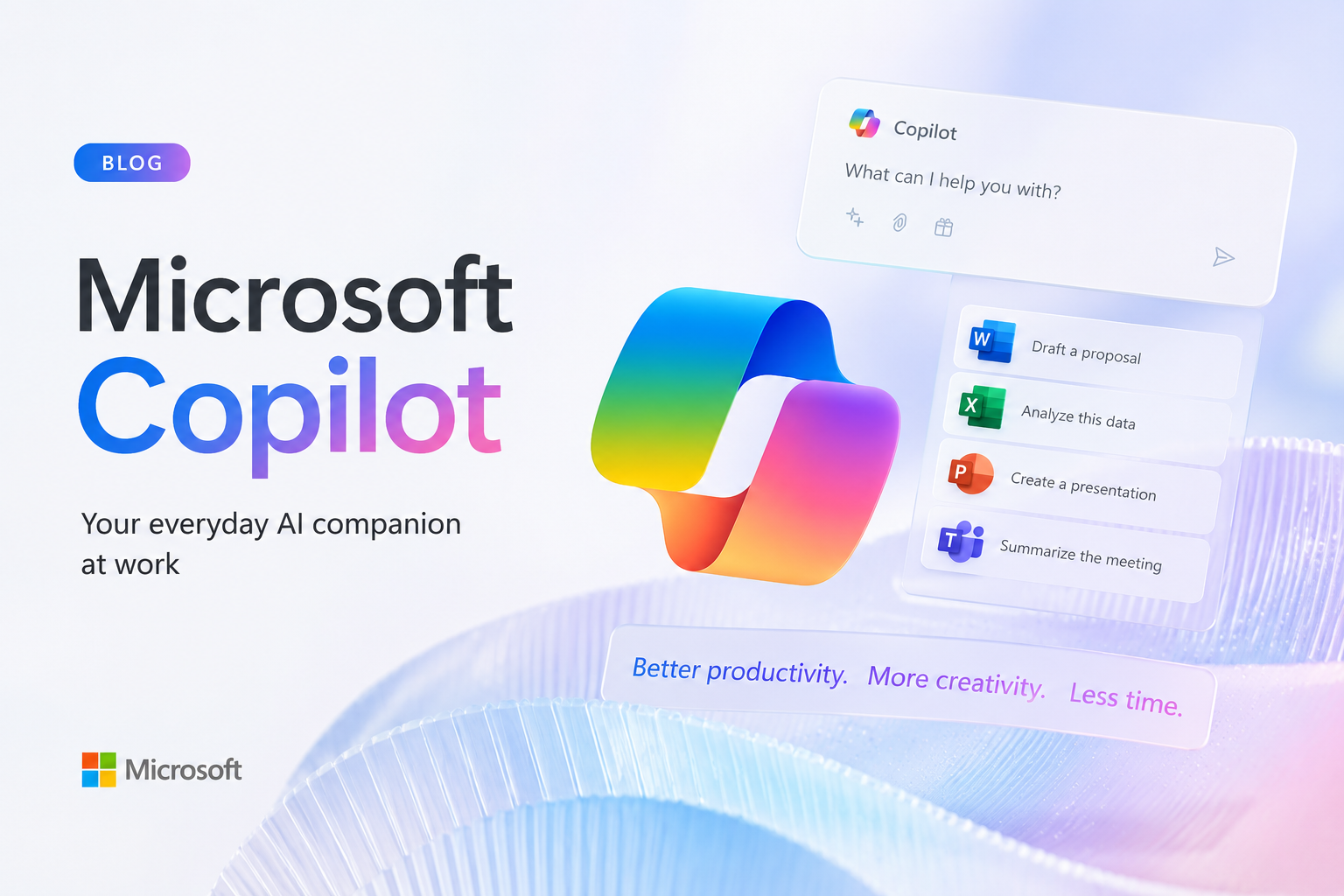
While Copilot has a range of benefits, it’s important to remember that prompt quality affects results. Users don’t need to become AI experts but they should write a decent prompt that gives context, states the goal and explains the desired output.
Be specific about dates, people, document names and expected format. Instead of saying “summarise the recent report,” ask: “Summarise the March sales report for the Western Cape region in five bullets, then list risks and actions for the operations meeting.”
For complex tasks, ask Copilot to work step-by-step. You might ask it first to summarise a document, then propose improvements, then draft a client-ready version. Always review and edit the output, especially for legal, financial and HR content, and verify facts against cited sources or internal records.
Teams should share effective prompts internally, for example, in a Teams channel. This helps standardise best practices and gives staff practical examples to reuse.
For software teams, GitHub Copilot is a related but specialised coding assistant. GitHub Copilot integrates directly into multiple coding environments for ease of use, and accelerates software development by suggesting code in real time.
The process to start with GitHub Copilot includes installing the extension, signing in, and prompting it for code. Open the extensions marketplace in your IDE to install it, because GitHub Copilot requires a setup of an active subscription and an official extension installation.
When coding, inline suggestions from GitHub Copilot appear as gray text while typing. Edit the first few suggestions to teach GitHub Copilot your formatting style. Then provide GitHub Copilot with context through natural language comments that can improve suggestions. Also be sure to write descriptive comments detailing intent for GitHub Copilot to generate the exact code.
Other important steps when using Copilot for code:
- Use descriptive comments to detail function goals before typing code.
- Define the inputs and outputs by stating expected parameters and return types in comments.
- Use naming conventions to guide GitHub Copilot with precise function and variable names.
Good development practice still applies. One function at a time is easier to debug and manage when using GitHub Copilot. Break tasks into smaller requests instead of asking it to build an entire module at once. And, provide step-by-step instructions to break complex logic into numbered lists in comments.
Opening relevant project files can help GitHub Copilot understand the local context. Manage open files by keeping relevant files open for it to read variable names and dependencies. Create a .github folder in your project root directory for customised instructions. And lastly, set project instructions in a copilot-instructions.md file to define naming conventions and coding standards.
Developers should know the controls. Accept code partially in GitHub Copilot by pressing Ctrl + Right Arrow. Then you can open the suggestion panel in GitHub Copilot with Ctrl + Enter to view multiple solutions. Cycle through options for alternatives in GitHub Copilot with Alt + ] or [.
To trigger manual suggestions in GitHub Copilot with Alt + \ on Windows or Option + \ on Mac. For inline chat in GitHub Copilot hold Ctrl + I to modify existing code via text prompt. You can also use built-in slash commands like /explain to understand unfamiliar code in GitHub Copilot. It provides different interaction modes depending on the Integrated Development Environment in use, and GitHub Copilot actively suggests code completions and answers contextual architectural questions too.
Security review is non-negotiable. Review every suggestion from GitHub Copilot to ensure security and bug-free code. Run automated tests immediately after accepting large blocks of code from GitHub Copilot. Copilot’s output should be treated like a pull request that needs review for security and performance just as though it was a developer.
How PM&A in Cape Town can help your business adopt Copilot

At PM&A, we can help you navigate the intricacies of adopting AI in your organisation. Our team is a Cape Town-based IT consulting partner focused on Microsoft 365, cloud and modern workplace solutions. Our general goal for our clients is not to switch on every feature at once, but to help your people use Copilot safely in everyday work.
PM&A can assist with readiness assessments, licence planning, pilot projects, tenant configuration, security reviews, Microsoft 365 Copilot rollout and Copilot Studio planning and so much more. Plus, we offer fast support and onsite services as we only tend to clients in Cape Town and surrounding areas. However, we also offer remote support.
While a practical adoption roadmap usually starts with licensing and data readiness, then moves into a focused pilot, PM&A can help train staff, define governance rules, review data privacy controls and support broader deployment.
To discuss Copilot for your organisation, contact us using the phone number, email address or contact form listed on the PM&A website. You can also learn more about our wider Microsoft 365 services.
Frequently Asked Questions about using Copilot in your business
These are practical questions PM&A often hears from South African clients. The answers focus on licensing, offline use, limits, training and rollout planning without unnecessary jargon.
Do I need Microsoft 365 to use Copilot, or can I just use the free web version?
You can use the free web-based Copilot in a browser with a Microsoft account. This is useful for general chat, basic search, simple writing help and testing how generative AI responds to prompts.
For business use inside Word, Excel, Outlook, PowerPoint and Teams, you normally need eligible Microsoft 365 licences plus the correct Microsoft 365 Copilot add-ons. This paid version can use Microsoft Graph to work with authorised organisational data.
PM&A can review your current subscriptions and recommend a cost-effective licence mix before you commit to a wider rollout.
Can Copilot work when my laptop is offline or during load shedding?
Most Copilot functionality runs in Microsoft’s cloud, so it requires an Internet connection. This applies even when you’re using Windows 11 or desktop Microsoft apps.
Businesses can reduce disruption with mobile hotspots, UPS backed routers, backup power for network equipment and planning AI-assisted tasks for stable connectivity windows.
Copilot+ PCs add local AI hardware for some features, but core Copilot chat and document assistance still rely heavily on cloud connectivity.
How safe is my company data when staff use Copilot daily?
Commercial Microsoft 365 tenants include enterprise data protection. Customer prompts and business content are not used to train public AI models in that commercial context.
Copilot respects existing file permissions and sensitivity labels, so staff should only access information they already have permission to view. However, this makes it important to clean up overshared folders and old access rights.
A written AI usage policy and staff awareness training are still essential. PM&A can help create practical guidance that fits your environment and POPIA obligations.
How much training do staff need before they can use Copilot productively?
Most staff can start with a one-hour introduction covering access, safe usage, good prompts and common examples. This is enough for everyday tasks such as summaries, email drafts and meeting preparation.
Follow up workshops work well for finance, sales, HR and operations teams. These sessions should use real examples from the team’s work so users see immediate value.
PM&A often recommends a small pilot group first. Motivated early users can test prompts, identify risks and help refine training material for the wider company. However, this depends on the industry and business.
What is the best way to get started with Copilot in my organisation?
Start with three steps: confirm licensing and technical readiness, choose two or three priority use cases, and run a time-boxed pilot with clear success criteria.
Do not enable every feature at once. Measure impact in areas such as reduced email time, faster reporting, better meeting outcomes or fewer repetitive admin tasks.
If your scenario is more complex, contact us for tailored advice. We can help design your roadmap, select pilot teams and configure Microsoft 365 and Copilot Studio securely.